YOUTH World Wide Award – Regulations for Activators
1. Purpose
The purpose of the activators is to keep your callsign active throughout the duration of the Award to allow hunters to earn points in as many as possible bands and modes.
2. Mandatory real-time QSO
All activators must have an Internet connection and are required to enter their QSO data on the platform provided by Hamaward in real-time. Only in exceptional cases may the entry of QSOs be permitted retroactively.
Our Hamconnect software and your browser are configured to SAVE all the QSOs if there is no Internet connection and you have logged offline some QSOs. As soon as Internet comes back all the QSOs are automatically reloaded on the platform without needing your help.
If QSOs are lost for any other reason, send as soon as possible and within 24 hours the ADIF of your log (you can send the entire log) to iw1fru@gmail.com, specifying the activator call sign (e.g., PD0KH.adi). The continuous loss of QSOs, often reported by hunters, is not in line with the spirit and ethics of this radio activity.
3. NO Contest allowed
The use of your callsign is not allowed for any contests during the Award period. It is therefore not allowed to operate as a contest station by sending reports compatible with contest rules or calling "CQ Contest". It is allowed to receive calls from contest stations, but replying with a report compatible with the ongoing contest is not permitted. It is recommended to occasionally announce "No contest" during any overlapping contest activity.
4. Only one signal
It is required to have only one signal per band and mode for single callsign.
By activating your Callsign on the Hamaward platform for an event, you accept and subscribe to these regulations.
REGISTER
This document assumes that you are registered to https://hamaward.cloud and got back a confirmation on your email (if not, please contact Max IW1FRU at iw1fru@gmail.com). Otherwise register with your personal callsign and email (Create account).
Login in the same page, click on your Callsign (up right) and you will be in your "Dashboard" and on the left Menu you should go to "Hamconnect" and Download the Windows Hamconnect app. It will overwrite the old one if you had one before.
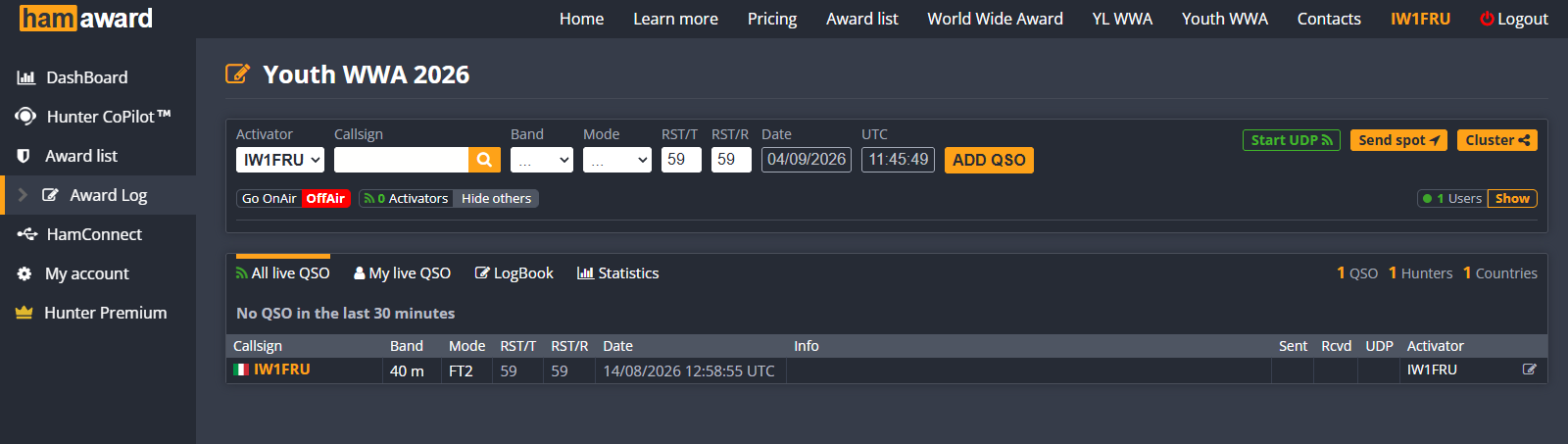
If you work only SSB, or CW (without keyboard to transmit) or FT8 or RTTY "manually", you don't need next points and you can go in Award List → Award log and click on the orange button of the current log YOUTH WWA ("YOUTH WWA 2026" in the picture). You will see the log and you can select band and mode and enter directly your QSO. You will see it scrolling down in the log.
Figure 1 – Hamaward Award Log page (YOUTH WWA 2026)
INSTALL HAMCONNECT software
(for FT8, CW with keyboard transmitting, RTTY, or SSB advanced)
While installing, leave default parameters and execute HamConnect at the end (there is a flag) installation: go slowly because Windows Defender should ask you permission to use a port (used by Hamconnect): "confirm" and finish. Once you have installed no need to do it again.
Launch the Hamconnect software. There will be no window opened on the screen! You will have the Hamconnect app icon executing in background (if not, nothing will work!).
Launch Logging Program (N1MM for example).
You will have to check the UDP broadcast ports on both: Hamconnect and N1MM. It must be the same number.
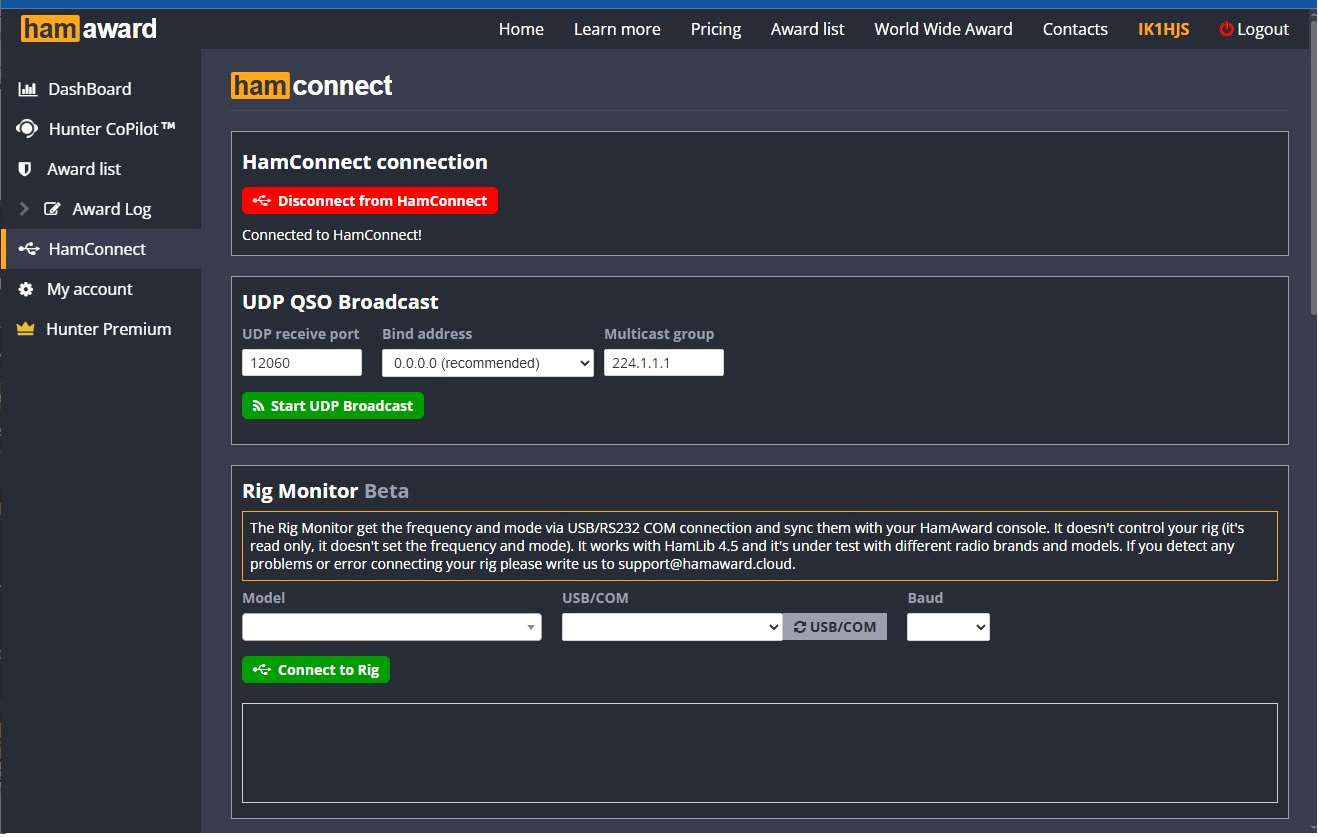
So while Hamconnect software is up and active, go with your browser on Hamaward web page, click on "HamConnect" left Menu option and click on the green button "Connect to HamConnect" (under the button there will be "Connected to Hamconnect!"). This means that Hamconnect is talking to Hamconnect web page correctly (otherwise remember to launch Hamconnect software, and click again). Now you will find three port settings. "UDP receive port" is the important one. For example: this port number for N1MM should be 12060. "Bind address" must be 0.0.0.0 (as it is in default) and no matter about "Multicast group", leave it as it is, it will not harm anything. No need to start now UDP broadcast. We will do it later at point 8).
Configure N1MM to Broadcast QSO via UDP to Hamconnect
(for FT8, CW with keyboard transmitting, RTTY, or SSB advanced)
Launch N1MM and create a new "Dxpedition" log with your callsign.
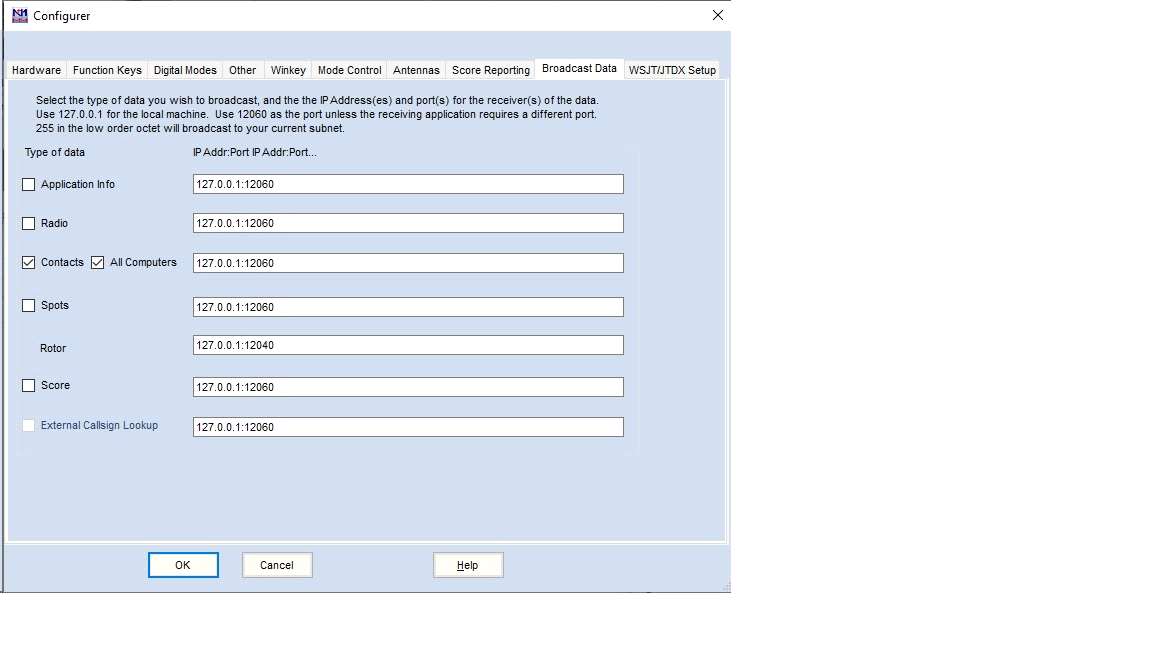
In N1MM Config menu, "Config Ports, Modes, Control, Winkey etc" go on "Broadcast data" tab, and on "Contact" voice there must be 127.0.0.1:12060. Remember to FLAG and check the port number same as the HamConnect UDP QSO Broadcast (see point 5). Flag "Contacts" and "All Computers".
Figure 2 – N1MM Configurer, Broadcast Data tab (Contacts + All Computers flagged, 127.0.0.1:12060)
CONNECT TO HAMCONNECT
(for FT8, CW with keyboard transmitting, RTTY, or SSB advanced)
Go on web page Hamconnect with your browser and, if not already done, click on "CONNECT TO HAMCONNECT" green button and now also click on "Start UDP broadcast" green button in UDP QSO Broadcast section.
TEST LOGGING ON HAMAWARD – On Hamconnect web page (only test)
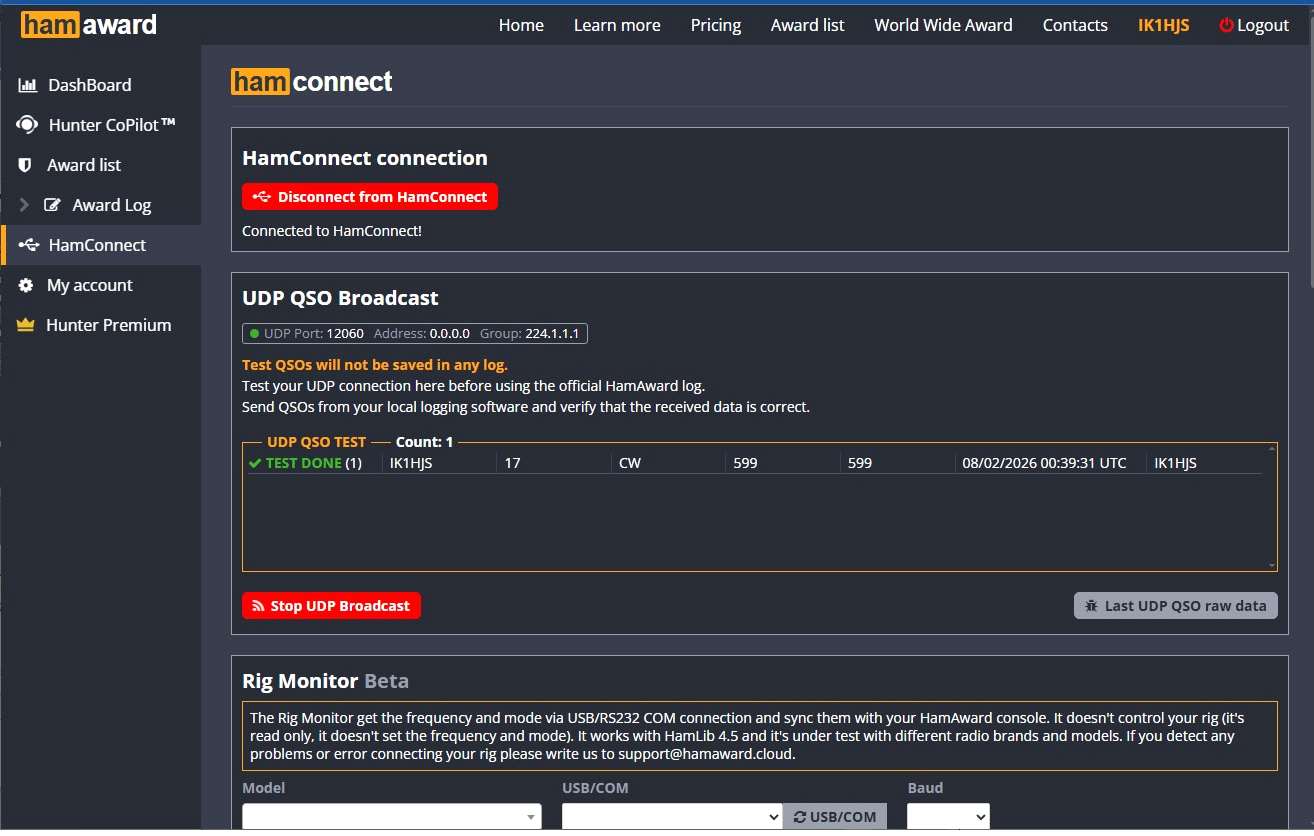
In N1MM try to simulate a QSO with IK1HJS (e.g.). You can check on Hamconnect web page in the upper part. You should find a line with "TEST DONE" (in green!) the QSO with time, band and mode correct. If there are some errors they should appear in red and help you to find a solution. You are in Hamconnect web page which is just a DEMO, so you can log what you want how long you want until the day before the beginning of the Award. If something is wrong please check the UDP port on both sides: N1MM and Hamconnect web page. Port number must be the same. Sometimes changing this port number can help (12061 instead of 12060).
Figure 4 – HamConnect page with a "TEST DONE" UDP QSO
TEST LOGGING ON HAMAWARD – On Online log (testing real-time log before the event)
Go in Award List → Award Log in the left Menu of Hamaward page, and select your current Award. For SSB QSO you can log directly on the Award Log page without any other logging program (e.g. N1MM). If UDP broadcast is active you have to "Stop UDP broadcast" pressing red button, and you will have an entry field for QSO. Select band and mode and enter the received callsign that you want to log. You will see the QSO up in the page and in the testing shared log.
If something goes wrong in logging, you can edit each QSO on the right side of the QSO line (remember to "save" after corrections). Only the QSO owner can do that.
For CW and DIGITAL MODES you will have to use a separate software (WSJT, JTDX, MSHV, N1MM, DXLOG, WINTEST).
REAL LOGGING QSO ON AIR (not test) ON HAMAWARD platform
Launch Hamconnect and check if Hamconnect icon on notification bar (right bottom of status bar) is there.
Launch your logging program (N1MM, DXLOG, WSJT, MSHV etc.) with your callsign set in configuration.
Launch web browser, go on Hamaward.cloud, login and select the current Award in Award list.
Check in Hamconnect web page if your logging program is correctly configured with a "test QSO". You should see it passing. Hamconnect should be connected (automatically) to this page in first line with a Red Button "Disconnect from Hamconnect" (Connected to Hamconnect): this means that Hamconnect is connected. If not, click on green button "Connect to Hamconnect".
To go on air YOU MUST GO ON YOUR AWARD WEB PAGE (Award list -> YOUTH World Wide Award) and keep active this page (open well on the left part of your screen to see the Left Menu, sometimes it is hidden). No need to have focus on it, just keep it up active.
On right up there is a green button "Start UDP" that must be pressed if you are using a logging program (N1MM, WSJT, JTDX, MSHV or any other). As said, if you are not using other logging software and you are typing QSOs directly on web page in SSB (which is suggested) press "Stop UDP broadcast" red button.
Now you are on air and can log in your logging program the first QSOs, or on the web page directly. Please check on that page if your QSOs are passing regularly. If not: stop and check again.
Before you start transmitting press the "Go OnAir" button, and press "Go OffAir" when you close your radio activity. Repeat it every time you go on air: this is how hunters see that you are active.
You will see that Hamaward Log will delete every /QRP or /M or /7 at the end of call: e.g. IK1HJS/7. But it will be logged normally a SP/IK1HJS or IK1HJS/SP or I7/IZ8JAI. This is done to facilitate the server scoring correctly.
In this page there is a "Send Spot" button that you don't have in your logging program: it sends a Cluster spot on the cluster and can be renewed every 15 minutes just clicking on it. This is a very useful tool that we suggest to use very often. After entering the callsign, pressing the space bar you will have a lookup on qrz.com of that callsign.
After 5 minutes of inactivity you will return as "not active" operator.
Screenshot for WSJT, JTDX, MSHV configuration
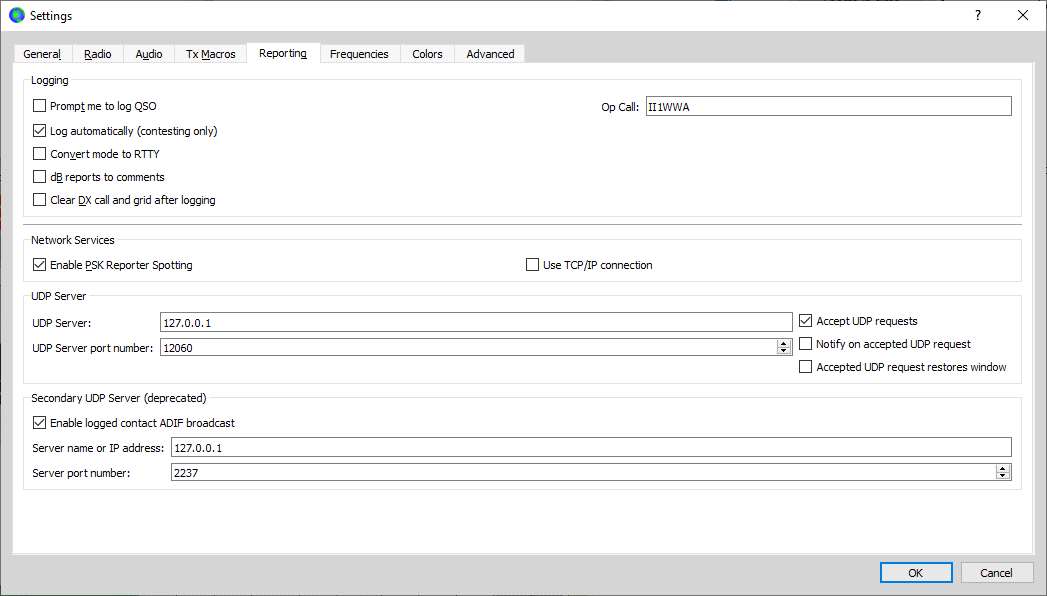
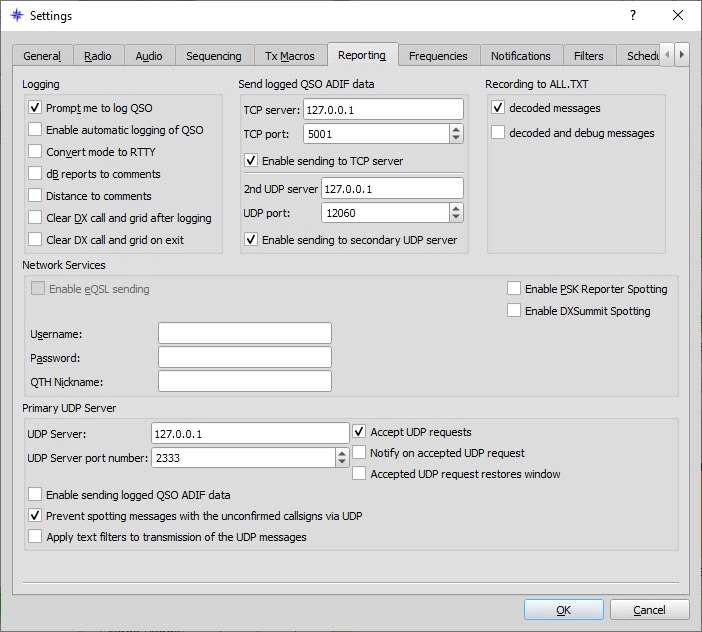
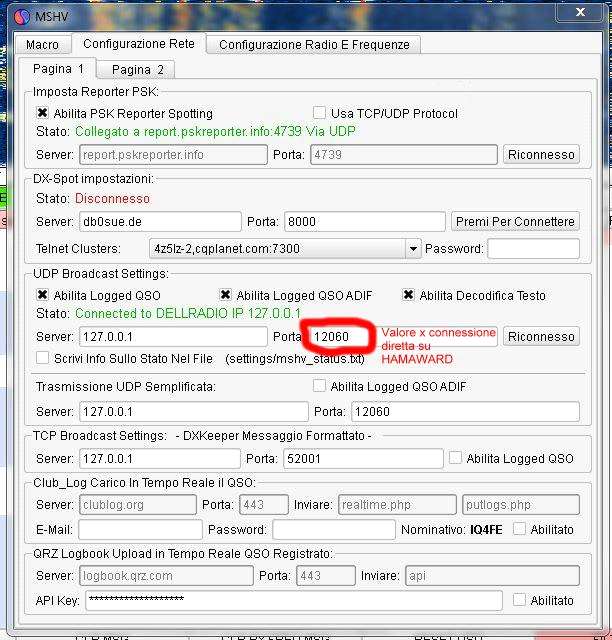
These three screenshots are the specific configuration that those programs must have to broadcast to Hamaward web page their QSO via UDP QSO BROADCAST. Always make sure that "Start UDP" green button has been pressed (when pressed you have "Stop UDP" red button active).
WSJT
Figure 5 – WSJT-X Settings, Reporting tab (UDP Server 127.0.0.1, port 12060)
JTDX
Figure 6 – JTDX Settings, Reporting tab (2nd UDP server 127.0.0.1, UDP port 12060)
If you are using N1MM and WSJT (or JTDX or MSHV) it is useful to have the same UDP BROADCAST port so you don't have to change it every time.
DXLog
In Configure Network menu go to QSO UDP Broadcast and as IP Address: 127.0.0.1, as Port: 12060. Then flag the "Enable Network". Then in Configuration menu go in "Broadcast" voice and flag "QSO".
Wintest
In Configuration → Option → Configure Interface the Broadcast address must be 127.0.0.1 and "Port number" must be 12060. Flag the "Enable local network".